Managing Secrets and Environments on macOS: 1Password CLI and Direnv
Securely manage environment variables and API keys on macOS. Learn how to use Direnv for per-project configuration and 1Password CLI for secret injection in your DevOps workflow.
Why This Matters
As a developer, you handle dozens of API keys, database passwords, and cloud credentials daily. Storing these in .zshrc or plain text .env files is a major security risk. If you accidentally push a secret to GitHub, your infrastructure could be compromised in minutes.
A professional setup solves this with two tools: 1Password CLI (for secure storage) and direnv (for automatic, project-specific environment loading). This ensures that secrets are only available when you are in the relevant project directory and never leak into your global shell.
Key Benefits
- Isolation: Environment variables for “Project A” don’t interfere with “Project B.”
- Security: Secrets stay encrypted in 1Password until the moment they are needed.
- Automation: No more typing
export AWS_PROFILE=...every time you switch tasks.
1. Context-Aware Environments with Direnv
direnv is a shell extension that loads and unloads environment variables depending on your current directory. It looks for a file named .envrc.
Installation
brew install direnvEnabling in Zsh
Add this to your ~/.zshrc:
eval "$(direnv hook zsh)"Usage: The .envrc File
Create a .envrc file in your project root:
# ~/.envrc
export AWS_PROFILE="my-dev-profile"
export KUBECONFIG="$PWD/kubeconfig.yaml"
When you cd into this folder, direnv will ask you to authorize the file:
direnv allow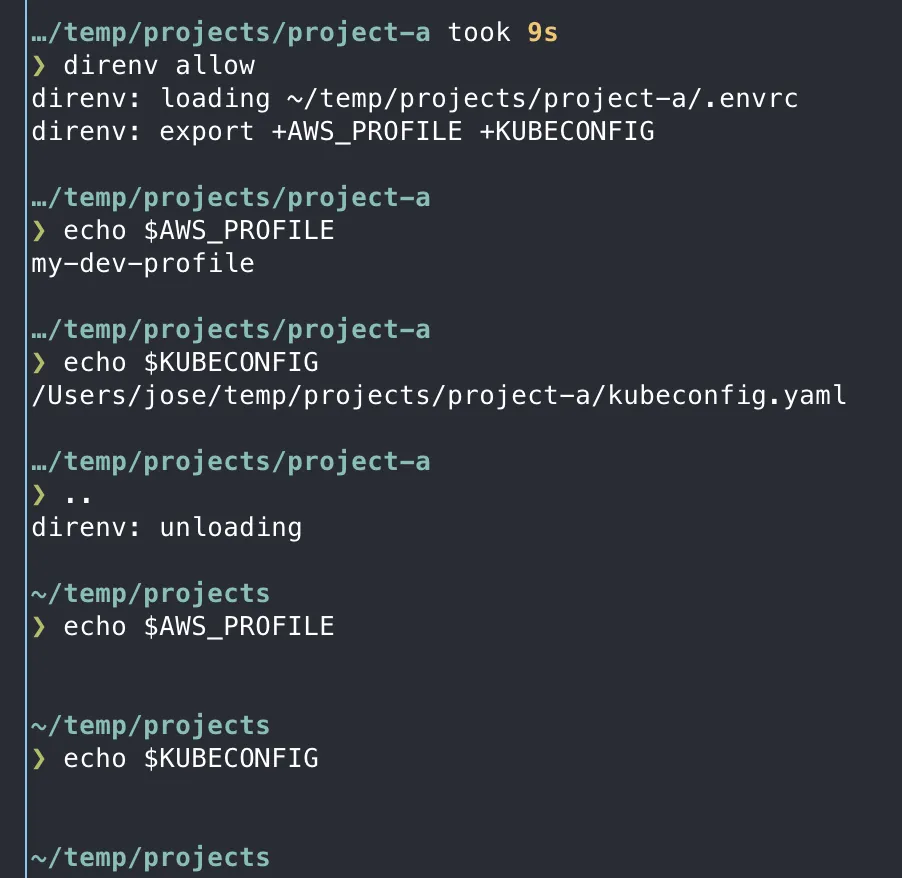
2. Secure Secret Injection with 1Password CLI
The 1Password CLI (op) allows you to reference secrets stored in your vault using a URI format (e.g., op://Vault/Item/Field).
Installation
brew install --cask 1password-cliThe “No-Secrets-On-Disk” Workflow
Instead of storing a real API key in .env, store the reference:
# .env file (Safe to have on disk, but don't commit it!)
STRIPE_API_KEY=op://Private/Stripe/api_key
Running Commands with Secrets
Use op run to inject the real values into a process without ever exporting them to your shell:
op run --env-file=.env -- npm run devTip
1Password will pop up a Touch ID prompt. Once approved, npm run dev gets the real key, but if you run echo $STRIPE_API_KEY in another terminal tab, it remains empty.
3. Synergy: Combining Direnv and 1Password
The ultimate DevOps workflow uses direnv to set non-sensitive config and 1Password to handle the secrets.
Example .envrc for a Cloud Project
# Set non-sensitive cloud context
export AWS_PROFILE=production
export AWS_REGION=us-east-1

# Use op run for the actual deployment
alias deploy="op run --env-file=.env -- terraform apply"
4. Best Practices for Secret Safety
- Global Gitignore: Ensure
.envand.envrcare in your global gitignore. - Biometrics: Always enable Touch ID for the 1Password CLI to avoid typing passwords.
- Use Profiles: Use
AWS_PROFILEorGOOGLE_CLOUD_PROJECTinstead of hardcoding access keys. - Short-Lived Tokens: Prefer
op signinsessions that expire over long-lived environment variables.
Summary
You now have a secure, automated way to handle project contexts and sensitive credentials. Your secrets are safe, and your terminal is “context-aware.” Next, let’s set up your Python and automation environment using these new security foundations.