The Ultimate Neovim Setup for DevOps Engineers: Speed and Precision
Transform Neovim into a powerful IDE on macOS. Learn how to configure LSP, Treesitter, and essential plugins for YAML, Python, and Go development with blazingly fast performance.
Why This Matters
As a DevOps engineer, you don’t just write code; you navigate massive YAML files, debug shell scripts, and manage Terraform modules. Traditional IDEs like VS Code are powerful but can be slow, resource-heavy, and difficult to use purely from the keyboard.
Neovim is a modal editor that lives in your terminal. It is blazingly fast and, when configured correctly, provides all the “smart” features of an IDE (Go-to-definition, Autocomplete, Refactoring) while keeping your hands on the home row.
Key Benefits
- Speed: Opens instantly, even in massive repositories.
- Ergonomics: Do everything without touching your mouse.
- Specialized for DevOps: Deep support for YAML, HCL (Terraform), and Shell scripts via LSP.
1. Installing Neovim and its Foundations
We want the latest stable version of Neovim.
brew install neovimThe “Default Editor” Rule
Ensure all your tools (like Git and the Shell) use Neovim for editing. Add this to your ~/.zshrc:
export EDITOR="nvim"
export VISUAL="nvim"
2. Plugin Management with Lazy.nvim
Modern Neovim configuration is written in Lua. We use lazy.nvim to manage our plugins because it allows for “lazy loading,” meaning plugins only start when you actually need them (keeping startup time under 50ms).
Installation
Neovim looks for its configuration in ~/.config/nvim/init.lua.
-- ~/.config/nvim/init.lua snippet
local lazypath = vim.fn.stdpath("data") .. "/lazy/lazy.nvim"
if not vim.loop.fs_stat(lazypath) then
  vim.fn.system({ "git", "clone", "--filter=blob:none", "https://github.com/folke/lazy.nvim.git", lazypath })
end
vim.opt.rtp:prepend(lazypath)

require("lazy").setup("plugins")
3. The “Big Three” of Neovim
To turn Neovim into an IDE, you need three core components:
A. Treesitter (Better Syntax)
Standard syntax highlighting is based on regex. Treesitter builds a real syntax tree of your code, providing faster and more accurate colors.
{ "nvim-treesitter/nvim-treesitter", build = ":TSUpdate" }B. LSP (Language Server Protocol)
This is the “brain.” It provides the autocomplete and error checking. For DevOps, we focus on:
- Yamlls: For Kubernetes and Ansible.
- Terraform-ls: For HCL.
- Basedpyright: For Python (managed via UV).
C. FZF-Lua (Fuzzy Search)
Integrated with the FZF we set up earlier, this allows you to find any file or function in a split second.
Note
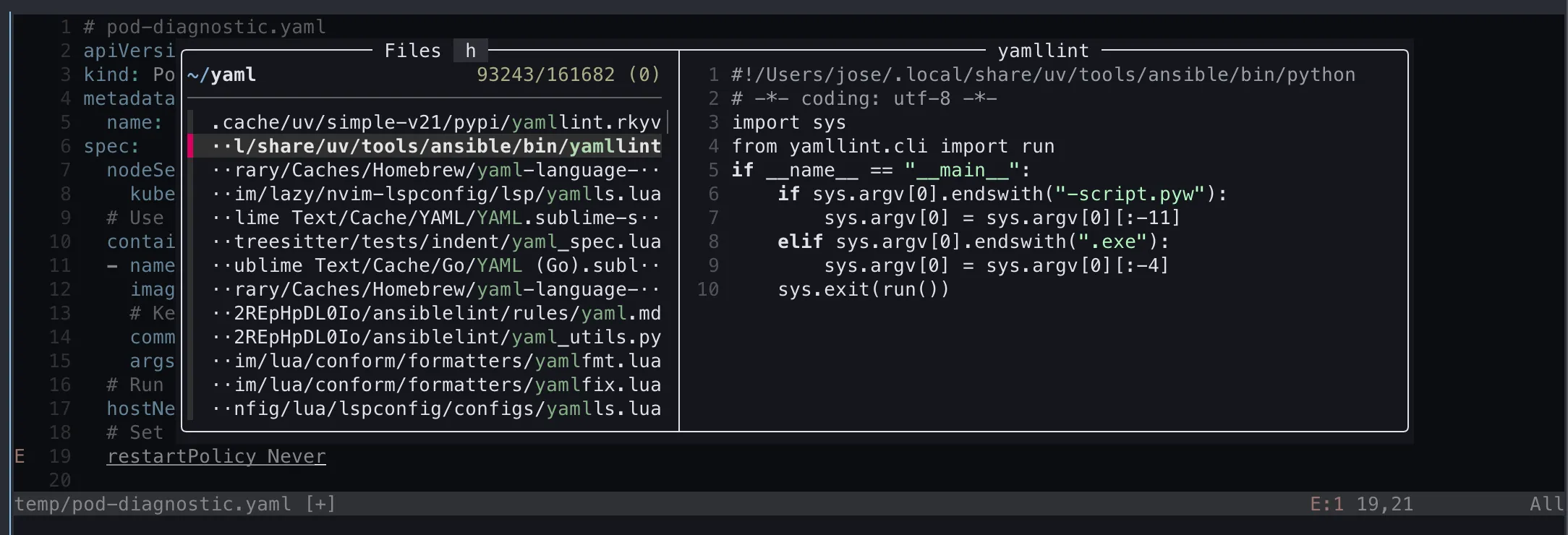
In the screenshot above you can see that lsp is telling me there is an error on line 19, that’s LSP in action.
Also, you can see FZF in action, searching for files that start with ‘yaml’ in their name, just by typing the file name. You can open the fzf search by pressing
4. Navigation and Keybindings
The goal is to move as fast as you think.
gd: Go to Definition.gr: Go to References (see where a variable is used).<leader>ff: Find File.<leader>fg: Find Grep (search for text globally).
5. Advanced DevOps Features: Oil.nvim
For DevOps work, you often need to move or rename files in bulk. Oil.nvim lets you edit your filesystem as if it were a normal text buffer. Just open a directory, change a filename in the text, and save the file—Neovim handles the mv command for you.
Summary
You now have a high-performance, keyboard-driven forge for your code and infrastructure. Your editor is integrated with your shell, your search tools, and your language servers. Now that your environment is complete, let’s ensure it’s all reproducible and managed with Dotfiles.