Advanced Git Configuration: Productivity, Security, and Global Ignores
Supercharge your Git workflow on macOS. Configure global gitignore, custom diff viewers like Delta, and secure commit signing for a professional DevOps experience.
Why This Matters
Git is the source of truth for all your projects. However, the default Git experience is visually cluttered and lacks the automation needed for high-velocity development.
A well-tuned .gitconfig doesn’t just make your terminal look pretty; it prevents you from committing junk files (like .DS_Store), helps you resolve conflicts faster with better context, and ensures your contributions are correctly attributed to your professional or personal identity.
Key Benefits
- Readability: Syntax-highlighted diffs make code reviews easier.
- Safety: Prevents accidental pushes to the wrong branch.
- Efficiency: Custom aliases turn long commands into 2-3 keystrokes.
1. Enhancing Visibility with Git-Delta
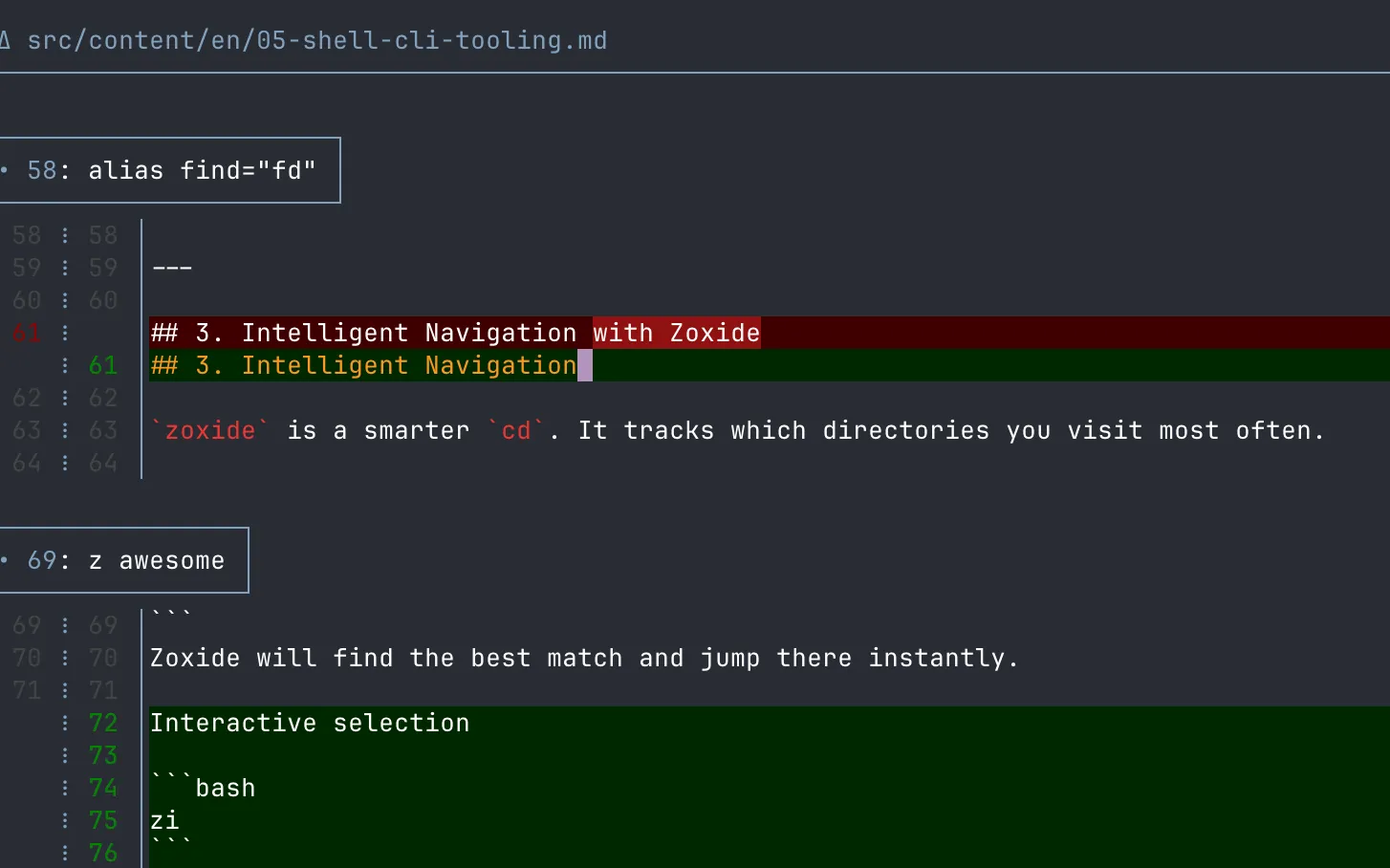
The default git diff is hard to read. Delta is a modern replacement that provides syntax highlighting, line numbers, and side-by-side views.
Installation
brew install git-deltaConfiguration
Add this to your ~/.gitconfig to make Delta your default pager:
[core]
    pager = delta

[interactive]
    diffFilter = delta --color-only

[delta]
    navigate = true
    line-numbers = true
    side-by-side = false
    syntax-theme = Monokai Extended
Example of git diff output with Delta:
2. Essential Global Settings
These settings improve the “quality of life” for any developer by automating repetitive tasks.
# General Identity
git config --global user.name "Your Name"
git config --global user.email "your@email.com"

# Productivity & Safety
git config --global init.defaultBranch main
git config --global pull.rebase true        # Keep a clean, linear history
git config --global fetch.prune true        # Auto-remove deleted remote branches
git config --global rebase.autoStash true   # Automatically stash changes before a rebase
git config --global push.autoSetupRemote true # Push new branches without --set-upstream
3. Custom Aliases: Working at Speed
Stop typing git status 100 times a day. Use aliases to speed up your workflow.
Recommended Aliases
[alias]
    st = status --short --branch
    lg = log --graph --decorate --oneline --all
    df = diff
    ds = diff --staged
    unstage = restore --staged --
    co = switch
    cob = switch -c
    last = log -1 --stat
4. Handling Global Ignores
Don’t let macOS system files or local IDE configs clutter your repositories. Create a global ignore file.
Step 1: Create the file
mkdir -p ~/.config/git
touch ~/.config/git/ignore
Step 2: Add common junk
.DS_Store
.AppleDouble
.LSOverride
Icon
.vscode/
.idea/
*.swp
Step 3: Tell Git about it
git config --global core.excludesfile ~/.config/git/ignoreTip
You can avoid this step as that’s the default path for Git.
5. Security: Commit Signing
In a DevOps environment, verifying that a commit actually came from you is critical.
If you followed the SSH & Authentication guide, you can use your SSH key to sign commits—no GPG required!
git config --global gpg.format ssh
git config --global user.signingkey "your-ssh-public-key-or-1password-path"
git config --global commit.gpgsign true
Summary
Your Git workflow is now faster, cleaner, and more secure. You have better visibility into your changes and fewer manual steps. Now that your version control is solid, let’s install the essential shell tools that will make your daily navigation effortless.