Crafting the Ultimate Terminal Prompt with Starship: Fast and Context-Aware
Transform your macOS terminal with Starship, the cross-shell prompt. Learn how to configure a fast, informative prompt that displays Git, Kubernetes, and Python context without the clutter.
Why This Matters
Your shell prompt is the most frequent visual feedback loop in your development workflow. A “dumb” prompt just tells you who you are and where you are. A “smart” prompt tells you what state you are in:
- Are you on the
mainbranch or a feature branch? - Are you in a production Kubernetes context or a staging one?
- Is your Python virtual environment active?
- Did the last command fail (and why)?
By using Starship, you get a blazingly fast prompt that provides all this context only when you need it, keeping your workspace clean and informative.
Key Benefits
- Speed: Written in Rust, it adds zero noticeable latency to your shell.
- Contextual: Shows your Git status, Cloud context, and Language version automatically.
- Consistency: Use the exact same prompt configuration on macOS, Linux, and even Windows.
1. Installing Starship
Starship is a single binary that works with Zsh, Bash, Fish, and even PowerShell.
brew install starshipEnabling in Zsh
Add this to the very end of your ~/.zshrc:
eval "$(starship init zsh)"Important
This line must be at the end of your configuration. If other tools try to set the PROMPT variable after Starship, its beautiful design will be overwritten.
2. Configuration: The starship.toml
Unlike older prompts that required complex shell scripts, Starship uses a clean TOML file located at ~/.config/starship.toml.
I use the preset called tokyo_night_storm. It is a great starting point and can be customized to your liking.
starship preset nerd-font-symbols -o ~/.config/starship.tomlI added some minor changes that you can find in my dotfiles repository.
3. Visual Feedback in Action
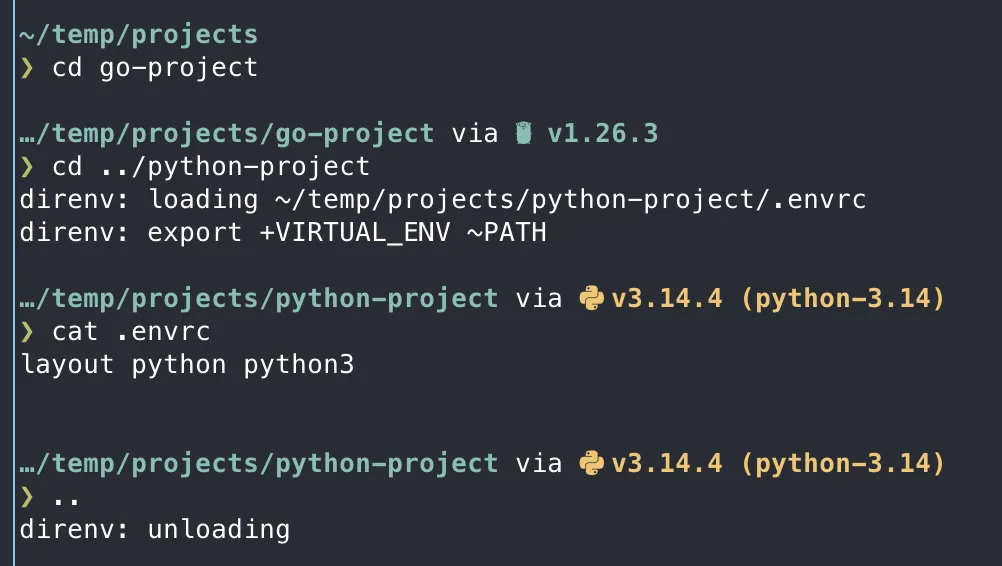
The prompt changes dynamically based on the directory you are in.
- In a Git repo: Shows the branch name and whether you have uncommitted changes.
- In a Python project: Shows the Python version (requires a
.python-versionorpyproject.tomlfile). - In a K8s folder: Shows your current cluster context and namespace.
In the screenshot below you can see the prompt changing as I switch between a Python project and a Terraform directory.
4. Performance Tuning
While Starship is fast, checking things like “Cloud provider status” or “Large Git repos” can sometimes slow it down.
Optimization Tips
- Disable Unused Modules: If you don’t use Go or Ruby, disable them explicitly in the config to save milliseconds.
- Scan Timeout: Set a scan timeout for large Git repositories.
- Use Nerd Fonts: Ensure your terminal is using a Nerd Font to render the icons correctly.
Summary
Your terminal now looks professional and provides the critical context needed for modern DevOps work. You are no longer “flying blind.” Now that your environment is visually ready, let’s manage your secrets and project environments.